
A customer emails support: checkout is broken in Safari. Support forwards it to the developer with a screenshot and a sentence: "the button does not do anything in Safari." The developer does not have the bug open in front of them. They have an image and a guess.
If they are using a coding agent, the agent is in the same position, just one step removed. It can read the ticket, scan the codebase, and propose a fix quickly. What it cannot do, unless you give it a way in, is look at the actual rendered page, the console error that never made it into the ticket, or the network request that is quietly failing.
It is debugging a story about a browser, not the browser.
On July 1, 2026, WebKit closed part of that gap. Safari Technology Preview 247 shipped a Safari MCP server, a Model Context Protocol server that any MCP-compatible client can connect to, giving an agent a live window into a running Safari browser. The release notes put it in one sentence:
Example
Allow your agent to connect to a Safari browser for development and debugging via the Safari MCP server.
That is a modest line for what it changes. Instead of narrating a bug to an agent, a developer can let the agent go check.
What the agent actually gets to see
Browser evidence first
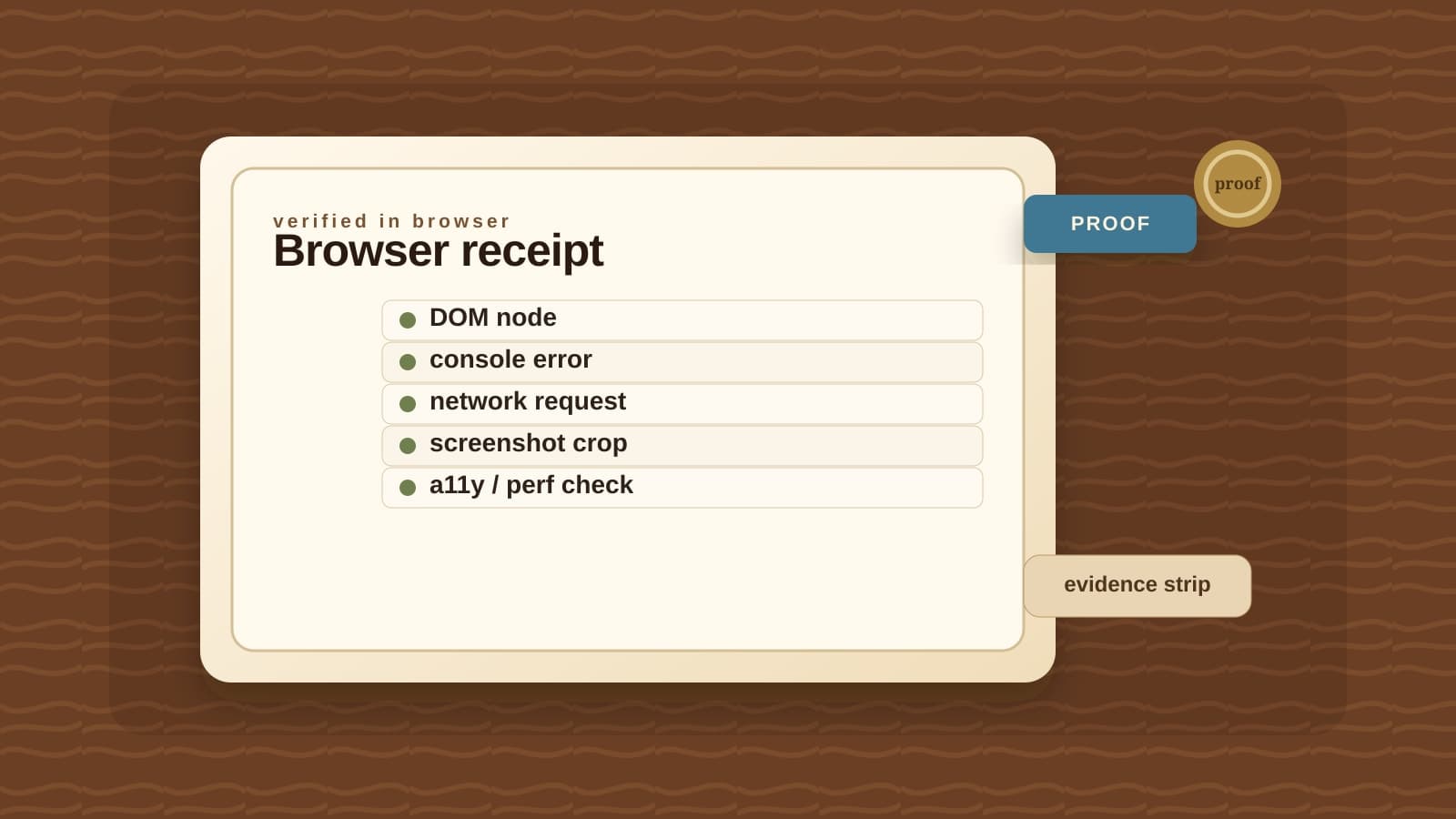
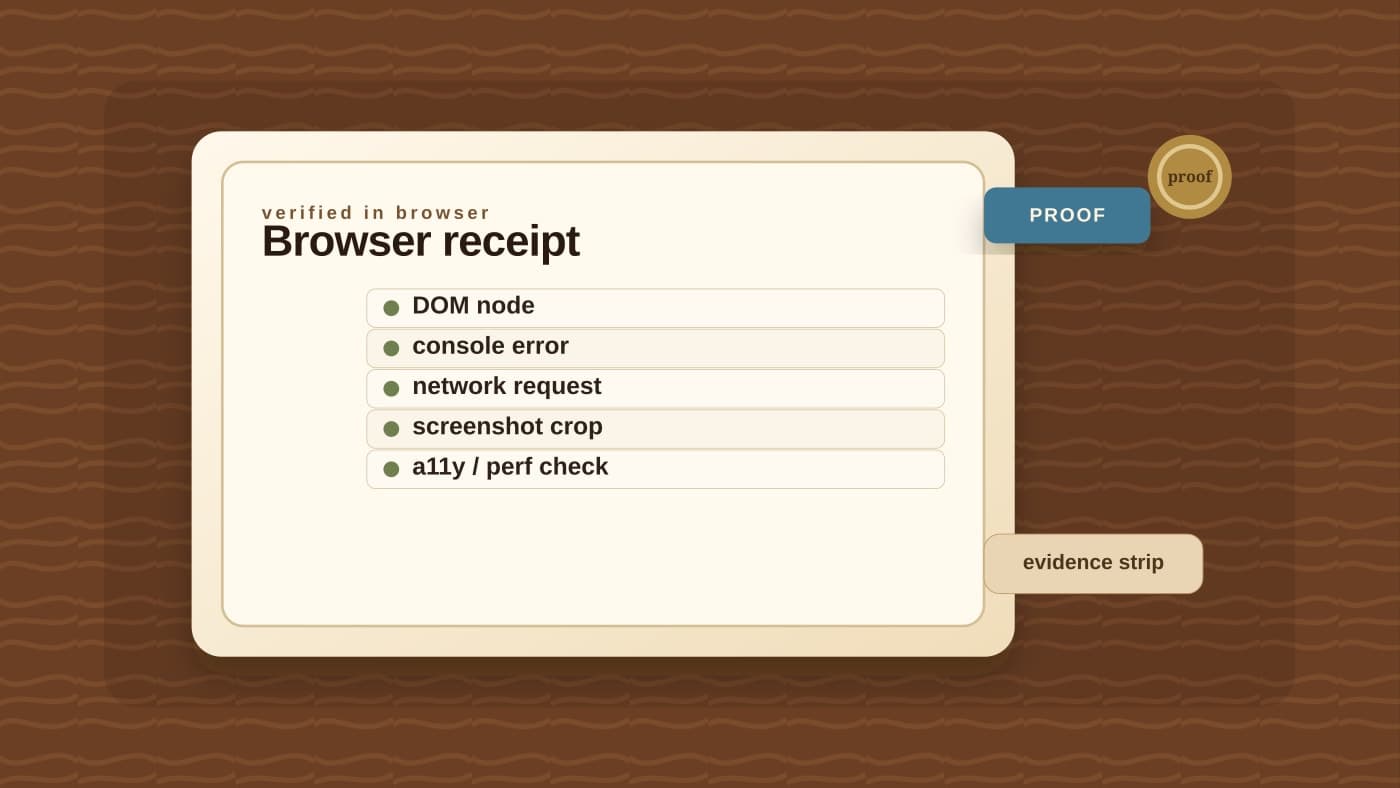
Browser evidence receipt
Before accepting a browser fix, require the agent to show which rendered-page evidence it inspected.
Before evidence
A Safari-only bug arrives as a screenshot, a sentence, and a guessed code path.
After receipt
The reviewer sees the rendered-browser evidence the agent inspected before accepting the diff.
- DOM snapshot: The page content or element state the agent inspected.The ticket's description is not enough if the rendered DOM says something else.
- Console warning: The error, warning, or dialog that appeared during the failed path.Console evidence separates a browser-only failure from a guessed code path.
- Network request: The request, response state, or failed endpoint tied to the user action.A broken-looking button may actually be a request or contract failure.
- Screenshot / viewport: A captured rendered state at the relevant viewport or media setting.The reviewer needs to see the page state the agent used to justify the fix.
- Accessibility or performance check: The a11y, performance, media, or user-state check relevant to the bug class.Browser-grounded review should include the lane that can regress silently.
Done means the agent can name what it saw in the browser, not only what it changed in the code.
WebKit describes the server as giving an agent access to DOM and page content, network requests, screenshots, and console output from a real Safari window. In practice, that is the evidence a developer would normally open DevTools to inspect before trusting a fix.
The listed tools cover the ground of a debugging session: reading console messages and dialogs, opening and switching tabs, running JavaScript in the page, listing and inspecting network requests, pulling page content, navigating, checking page info, interacting with the DOM, taking screenshots, emulating media and viewport size, and waiting on navigation to settle.
WebKit names the useful lanes directly: Safari compatibility checks, performance analysis, accessibility checks, and verifying user state. None of those are new problems. The change is that an agent can gather the evidence for them itself, instead of waiting for a person to paste in a console log or describe what a screen reader announced.
The setup is deliberately narrow
Turning this on is not a background service you forget about. It requires Safari Technology Preview, enabling developer features, and explicitly turning on remote automation for external agents. WebKit's own examples show wiring this up with one line each for Claude and Codex through Safari Technology Preview's safaridriver with the --mcp flag.
That matters because this is a developer tool, not a general-purpose browser worker roaming the public web. WebKit is specific about the boundary: the server runs entirely on the local machine, makes no network calls of its own, and does not touch personal Safari data like AutoFill or other browsing activity. It inspects the page you are testing, not your browsing history.
But the next sentence in that same paragraph is the one that matters for who is on the hook: whatever the server captures, including page content, screenshots, and console logs, goes straight to the agent you are running, not to Apple.
That is the right privacy boundary for the browser vendor. It is not the end of your responsibility. If the page contains a customer dashboard, a session-bearing request, or sensitive form data, the server has only handed evidence to your agent. It has not decided whether that evidence should leave the machine, enter a model context, or be retained by the tool you connected.
The habit this creates
This is a debugging tool in a technology preview, not a customer-facing automation product. It belongs in a different category from the public-web browser agents we have written about running into CAPTCHAs and bot controls. Those agents navigate other people's sites under adversarial conditions. Safari MCP is a developer pointing an agent at their own local browser, on purpose, to look at their own code.
That is a safer lane, but it still changes the review process. Before you accept an agent's fix for a Safari-only bug, ask what it actually inspected in the browser, not just what it changed in the diff.
Did it see the console error, or infer one from the ticket? Did it check the failing network request, or just assume the API contract held? Confirm which before you accept the fix.
That question matters more as agents take on more of the debugging loop, not just the coding one. It is the same instinct behind mapping which steps in an agent workflow belong to code, model, or a person: an agent inspecting a live browser is a different trust boundary than an agent editing a file, and a Safari-only regression is exactly the kind of fix that deserves a person's eyes before it ships.
The rule is simple: do not accept a browser fix from an agent until it shows you what it saw in the browser.
The console line. The failed request. The screenshot. The rendered state after the fix. Evidence does not remove human review. It makes the review less theatrical.
If you build this into your workflow
Safari MCP is one browser, one preview release, and one piece of a larger question every team using coding agents for web work is starting to face: which debugging steps can an agent run, which ones require evidence, and which ones still need a person to look at the actual screen before a fix goes out.
If you have a Safari-only bug class, a flaky cross-browser regression, or a QA process still built around screenshots and pasted console logs, start there. Tell us which one you are stuck on, and we will work through the debug loop with you: what the agent needs to check in the browser, what evidence it has to show before a fix gets accepted, and where a person still has to look at the screen. That is the shape of our AI-assisted website development work.
Browser QA help
Turn a flaky browser bug into an evidence loop
Pick the Safari-only bug or flaky cross-browser workflow that keeps coming back. BaristaLabs will help define what browser evidence an agent must gather, how a developer reviews it, and when the fix is ready to ship.
Best fit for teams using coding agents on web products where Safari, accessibility, performance, or user-state bugs still require manual detective work.
Turn this idea into a pilot
Which workflow should go first?
Use the readiness check to compare impact, effort, risk, owner, and next step before requesting a review.
- 3-5 minutes
- Deterministic score
- No sensitive data
Practical AI Workflow Notes
Want more practical AI operations ideas?
Get short notes on applying AI inside real small-business workflows — from document handling and customer follow-up to internal reporting, compliance, and automation guardrails.