

A lot of business automation work still starts with a sentence nobody wants to hear:
"There is no API for that."
The invoice portal only works through a browser. The desktop ERP still needs nightly entries. A vendor site changes just often enough to break the old script. A finance team exports a spreadsheet, checks three fields, logs into another system, and rekeys the same information by hand.
That is the practical context for Microsoft's May 2026 Copilot Studio updates. The headline is that computer-using agents are now generally available. The more useful story is that Microsoft is turning UI automation for web and desktop applications into something closer to a governed workflow primitive.
That matters for small and mid-sized businesses because many important processes live in the gap between "fully manual" and "worth building a clean integration for." Computer use can help bridge that gap, but only if it is treated as controlled automation, not permission for an agent to wander through business systems.
What Microsoft announced
Microsoft says computer-using agents in Copilot Studio are now generally available. These agents can interact directly with websites and desktop applications through the user interface.
Microsoft also announced that computer-using agents can be embedded into multi-step workflows, with workflow integration moving into preview. That is the important shift. A computer-using agent is not just a bot that clicks buttons. It can become one step inside a broader process that includes business logic, approvals, API calls, data checks, and exception handling.
The same update points to a wider Copilot Studio direction: a redesigned workflows experience for early release environments, Work IQ REST API and CLI capabilities, remote MCP support, agent-to-agent communication, and real-time voice agents in North America through Dynamics 365 Contact Center. Microsoft describes the platform as combining structured workflow with adaptive execution.
The Microsoft Learn documentation for Copilot Studio computer use is more concrete. Computer use lets an agent automate tasks on a Windows computer using a virtual mouse and keyboard. It can select buttons, choose menus, enter text, navigate sites and apps, extract data, and submit forms. Microsoft specifically calls out cases where no direct API is available, including automated data entry, invoice processing, data extraction, and GUI workflow automation.
The feature requires generative orchestration. Microsoft's model table lists OpenAI Computer-Using Agent and Anthropic Claude Sonnet 4.5 as generally available, with newer Claude Sonnet and Opus 4.6 options listed as experimental or premium depending on the model.
Microsoft has also strengthened the surrounding operational controls. In a separate Copilot Studio post on improving complex UI automation with computer-using agents, the company highlights stronger credential handling, model choice, monitoring, session replay, action logs, run summaries, resource tracking, export options, and Managed Cloud PC capacity through Windows 365 for Agents.
For teams already using Power Automate or classic RPA, Microsoft is positioning computer-using agents as an extension of that investment, not a replacement for every deterministic automation.
Why this is different from old RPA
Traditional RPA is useful when the screen is predictable. If the button is always in the same place and the form always behaves the same way, deterministic automation can work well.
Many real business systems are not that stable. Vendor portals change labels. Login flows add prompts. Tables move. A dashboard that looked simple last month now has a banner, a modal, or a reordered menu. Old RPA can break when the path changes.
Computer-using agents add a layer of adaptive interpretation. They can use vision and reasoning to understand what is on screen, decide which UI element matches the instruction, and continue when a layout changes within reasonable bounds.
That does not mean they are automatically reliable. It means the failure mode changes.
Old RPA often fails because the script cannot find the exact element it expected. AI-driven UI automation can fail because the agent misreads context, chooses the wrong similar-looking action, or proceeds when it should stop. That is why governance matters as much as model choice.
Model choice helps, but it adds a decision point. The right model depends on the task, the interface, the risk level, and the amount of supervision available. For many SMB teams, an AI consulting conversation is less about "which model is best" and more about "which workflow should use AI at all."
Where SMB teams should test it first
The best first use case is not the flashiest one. It is a process that is repetitive, painful, low to medium risk, and easy to verify after the run.
Vendor portal updates
Many operations and finance teams still update vendor portals manually. That might mean checking order status, uploading a file, changing a shipping field, or copying confirmation data back into an internal system.
Computer use can help when the portal has no API, but the task should be narrow. For example: "Log into this portal, find the order number provided by the workflow, download the confirmation PDF, and return the file and status." That is much safer than "handle vendor updates."
This is a strong fit for a bounded process automation audit because the steps are visible, repeatable, and easy to document.
Invoice and document data extraction
Microsoft's documentation specifically mentions invoice processing and data extraction. A practical SMB workflow might involve opening a vendor portal, downloading invoices, extracting invoice numbers and totals, then routing the result for review before posting.
The key is to separate extraction from approval. Let the agent collect and prepare. Keep humans in control of payment, account coding, exception resolution, and final posting when the cost of an error is high.
This is especially relevant in financial services and finance operations, where workflows often involve portals, spreadsheets, document review, and strict audit expectations.
Nightly ERP or desktop app entry
Some teams have a desktop system that is too old, too expensive, or too risky to integrate directly. If staff are manually entering the same approved data every night, a computer-using agent may be useful as a bridge.
The controlled version looks like this: a workflow validates the input data first, the agent enters only approved records, session replay is enabled, exceptions are routed to a person, and the system produces a report showing what changed.
That is very different from giving an agent broad access to the ERP and telling it to "clean things up."
Customer-service back-office updates
A service team may handle requests in one system and then update another system behind the scenes. Address changes, subscription adjustments, document retrieval, and status checks are common examples.
Computer use can reduce swivel-chair work, but it should be tied to clear request types. The safest early versions are read-heavy or draft-first: look up the record, prepare the update, summarize what will change, and ask for approval before submitting.
Finance close and checklist support
Month-end close is full of small, structured tasks: download reports, check that files exist, confirm balances were exported, collect screenshots, update a close checklist, and flag missing items.
A computer-using agent can help with the administrative layer without taking over accounting judgment. The agent can gather evidence and update a checklist. A responsible person still owns review, signoff, and decisions.
Where not to use it yet
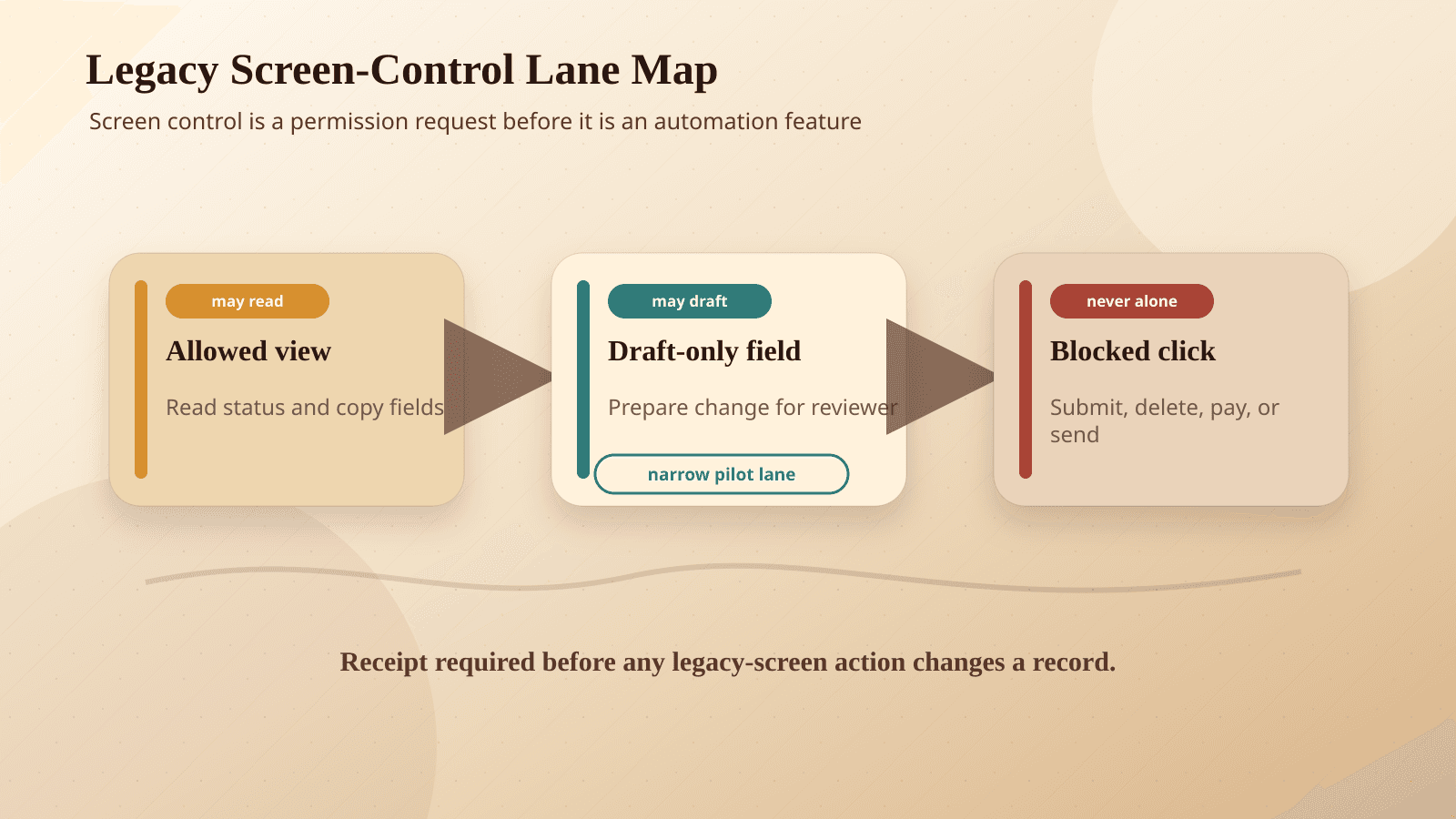
Computer use is powerful because it can operate through the same interface a person uses. That is also why it needs boundaries.
High-value payments
Do not make your first computer-use workflow one that releases large payments, changes bank details, or approves financial transfers. If an agent prepares payment data, use a human approval gate before anything moves.
Irreversible actions
Be careful with workflows that delete records, close accounts, submit legal filings, terminate access, or overwrite production data. If a mistake cannot be reversed cleanly, the automation should stop and request review.
Regulated decisions without review
If a workflow affects credit, insurance, employment, healthcare, eligibility, or other regulated outcomes, do not let a computer-using agent make the final call. Use it to collect information, prepare a draft, or assemble evidence. Keep the decision path reviewable and human-governed.
BaristaLabs' responsible AI guidance starts from this premise: the more consequential the action, the more explicit the human control should be.
Broad admin access
Microsoft's documentation warns that if an agent is shared with maker-provided credentials, users may be able to act with the maker's access on the configured machine. That is not a small footnote. It is a design constraint.
Do not give a shared agent broad admin credentials because it is convenient. Use least privilege, separate test and production accounts, and define who can initiate which actions.
For credential-heavy workflows, review your data security posture before expanding access.
Brittle high-volume workflows with no monitoring
If a workflow runs hundreds or thousands of times and nobody reviews failures, you are not reducing risk. You are scaling it.
High-volume automation needs monitoring, alerting, run summaries, replay, and an exception path. Without those controls, adaptive UI automation can become harder to debug than the manual process it replaced.
Implementation checklist for computer-use workflows
If you are evaluating Microsoft computer-using agents, start with one workflow and design the controls before you scale.
Define the narrow task
Write the task as if you were training a new employee for one specific job.
Bad scope: "Handle invoices."
Better scope: "For each approved invoice ID, open the vendor portal, download the invoice PDF, confirm the invoice total matches the approved amount, and return a status of matched, mismatched, or not found."
The narrower the task, the easier it is to test, monitor, and improve.
Use a test account first
Before connecting production credentials, run the workflow with a test account or sandbox where possible. If the target system does not have a sandbox, limit the first test to read-only actions or draft creation.
Set a credential policy
Decide whether the workflow should use maker-provided credentials, end user credentials, or stored credentials. Microsoft supports stored credentials through Power Platform internal storage or Azure Key Vault, and says built-in credentials are encrypted and not exposed to the AI model.
That is helpful, but it does not remove the need for access design. Ask:
- Whose authority is the agent acting with?
- Can the agent access more than it needs?
- Who can run the workflow?
- How are credentials rotated or revoked?
- What happens when an employee changes roles?
Turn on monitoring and session replay
For UI automation, logs are not optional. You need to know what the agent saw, clicked, typed, skipped, and returned.
Microsoft's monitoring updates, including session replay with screenshots, step-by-step action logs, run summaries, resource tracking, and export options, are exactly the kind of controls teams should use during pilots.
If you cannot replay or audit the run, do not use it for sensitive workflows.
Add an approval gate for risky steps
Approval gates should sit before actions that cost money, change customer data, submit official records, or alter system permissions.
Microsoft's human supervision feature can route potentially harmful instruction concerns to a reviewer and stop the run if no response arrives. That is useful, but do not rely only on model-detected risk. Build approval into the workflow where the business risk is already known.
Define the exception path
The agent should not improvise through every surprise.
Define what it should do when:
- Login fails
- A page layout changes
- A required field is missing
- The invoice total does not match
- The customer record is ambiguous
- A confirmation screen does not appear
- The system returns an unexpected warning
In many cases, the right answer is: stop, capture evidence, and route to a person.
Plan rollback before production
For every write action, know how to reverse or correct it.
That might mean keeping before-and-after values, saving confirmation numbers, exporting a change log, or limiting the first production run to a small batch. A rollback plan is what turns automation from "hope it works" into an operational process.
Pick one metric
Do not measure everything at first. Pick one useful metric tied to the workflow.
Examples:
- Manual minutes saved per run
- Percent of runs completed without exception
- Number of mismatches caught before posting
- Time from invoice availability to review-ready status
- Number of portal updates completed with replayable logs
The point is not to prove that "AI works." The point is to decide whether this workflow is safer, faster, or easier to operate than the current process.
The real opportunity is governed automation, not screen-clicking
The phrase "computer-using agent" can make this sound like a novelty: an AI that moves a mouse and clicks around.
That is not the useful framing for business leaders.
The useful framing is this: Microsoft is making it easier to place adaptive UI automation inside governed workflows. That gives teams another option for legacy systems, vendor portals, desktop apps, and internal processes that do not justify a full integration project yet.
The best first move is not to buy a broad agent platform and look for somewhere to use it. Start smaller. Pick one manual workflow that crosses systems, depends on a GUI, has clear success criteria, and frustrates the people doing the work.
Audit that workflow. Identify the credentials involved. Map the failure points. Decide where a human must stay in control. Then test whether computer use can handle one bounded step with logs, replay, and a rollback path.
If you want help choosing the right workflow, BaristaLabs can help you audit one process automation candidate before you commit to a broader platform decision.
Review a legacy workflow lane
Make legacy automation reviewable before it clicks
BaristaLabs helps teams turn legacy UI automation ideas into bounded workflows with permissions, review gates, receipts, and rollback paths.
Best fit when a workflow lives across older tools, portals, spreadsheets, or systems without clean APIs.
Turn this idea into a pilot
Which workflow should go first?
Use the readiness check to compare impact, effort, risk, owner, and next step before requesting a review.
- 3-5 minutes
- Deterministic score
- No sensitive data
Practical AI Workflow Notes
Want more practical AI operations ideas?
Get short notes on applying AI inside real small-business workflows — from document handling and customer follow-up to internal reporting, compliance, and automation guardrails.